Adding Remote Drones to DroneSense Remote (DSR) depends on whether you are flying non-docked or docked drones.
Non-Docked Drones
- Install the DroneSense app following the instructions in this article.
- Log in to the DroneSense app following the instructions in this article.
- Select Remote Operation Mode
- On the next screen:
- Select a Site from the list. If you don't see any sites listed, you need to add them following this guide.
- Tap Next
- Log in to DSR and navigate to Remote Drones
- The drone should now appear in Remote Drones with a Not Ready status.
- On the controller, tap Indicate Ready
A green border will surround the controller screen. - The drone should now appear in Remote Drones with a Ready status.
Docked Drones
- Log in to DSR and navigate to Remote Drones
- Click + Add Dock
- Review the Add Dock Instructions:
Note: You will need the serial number of the Dock in order to add to your account. The serial number can be found in two locations: Inside the access panel of the dock or on the home screen of Pilot 2 if connected to the dock.
Dock 1 Serial Number location: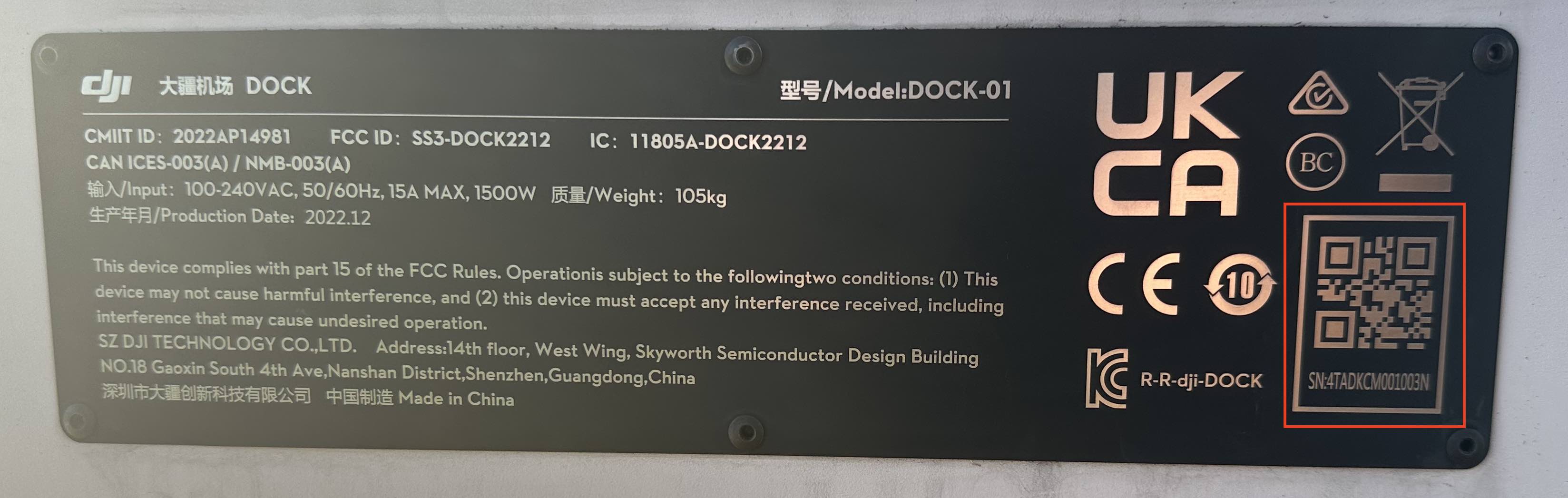
Dock 2 Serial Number Location: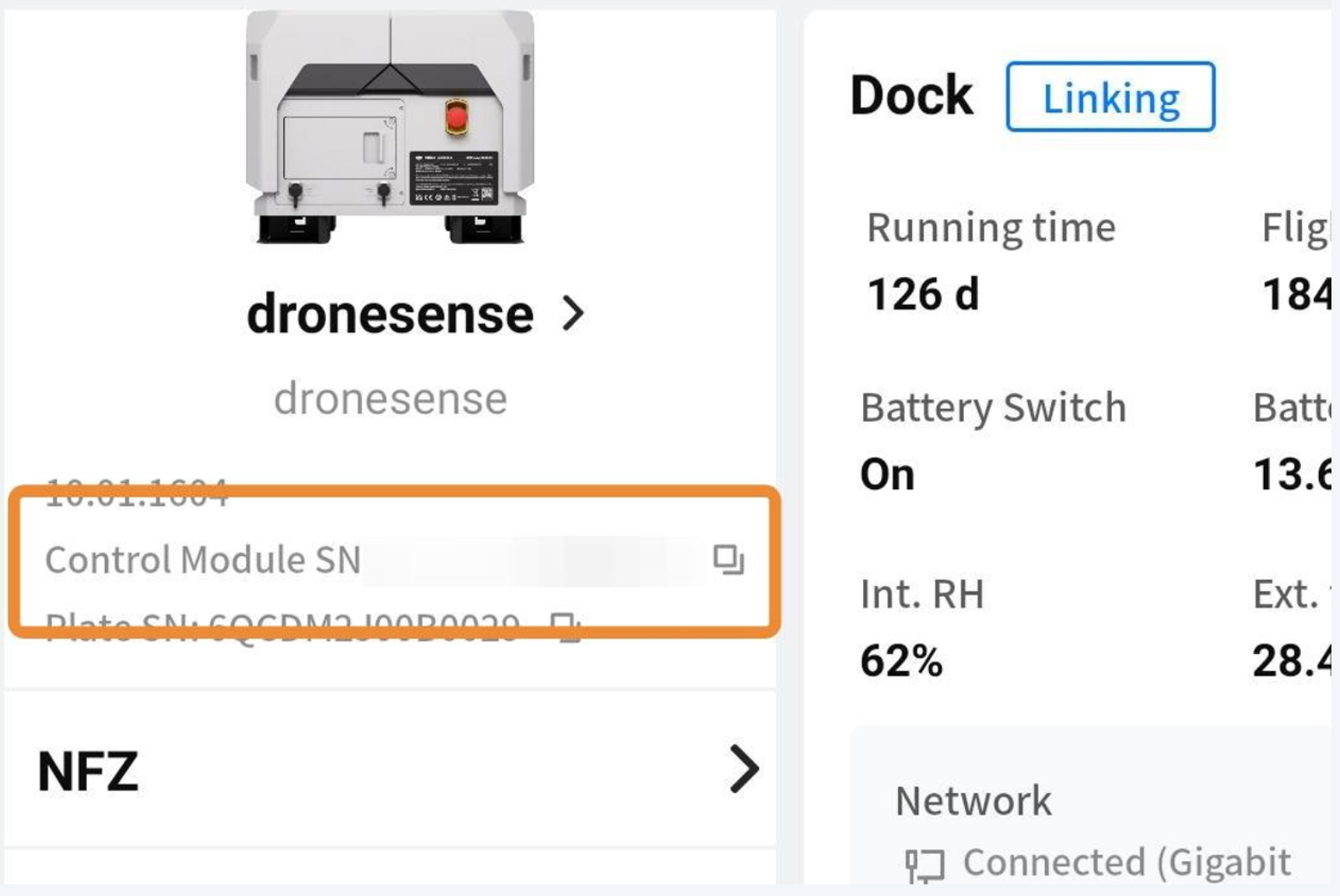
Dock 3 Serial Number Location:
- Click Next
- Fill in the required fields
Dock Serial Number
It is NOT recommended that the user make any edits or alterations to the Dock Serial Number information once it is in our system with the Correct Serial Number.
Dock Name
Provide a name for your dock, using any naming convention within your policy and procedures.
Launch Site
Must be created before editing the Dock Settings.
Video Service
Video Service should be selected to Video 2.0, adjustments to Video 1.0 may be required for network or connectivity issues, but should be done in coordination with the DroneSense Team.
Video Quality
It is recommended that you select the highest possible Video Quality setting and adjust it as needed.
Media Upload Settings
Connect an AWS S3 bucket to enable direct media uploads from your DJI Dock 1 and 2. Detailed instructions are available from our Trust page (trust.dronesense.com), or contact our Support team for assistance with setup.
- Click Save
- The dock will need to be configured to connect to the DroneSense servers. DroneSense will provide you with the third-party addresses to connect to DroneSense Remote.
BE SURE TO ENTER IN ALL INFORMATION EXACTLY AS PROVIDED. - Once bound to DroneSense Remote, the dock will populate.
Comments
0 comments
Please sign in to leave a comment.